Using the e-library on your mobile
Published: 19 May 2022
Sections on this page
E-books
ProQuest Central
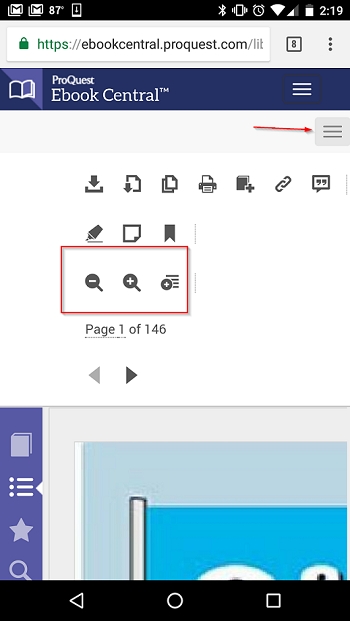
Whilst some e-book formats automatically resize on mobile devices, many don’t. If your book doesn’t resize, there are two options for reading on your mobile.
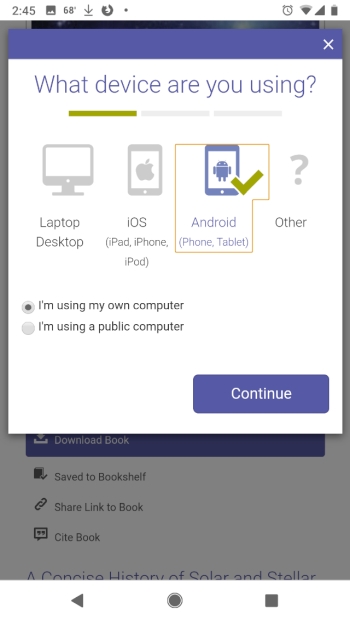
Option two: Click on the Download Book tab underneath an e-book and you’ll be prompted to install Adobe Digital Editions for offline reading (see below centre; you’ll also need to set up an Adobe ‘pass’ account the first time you use the reader).
Please note that you will not be able to download e-books if we only have one copy. If you think we should purchase more copies of a particular title, please do let us know.
Then, choose your device, click I’m using my own computer and continue.
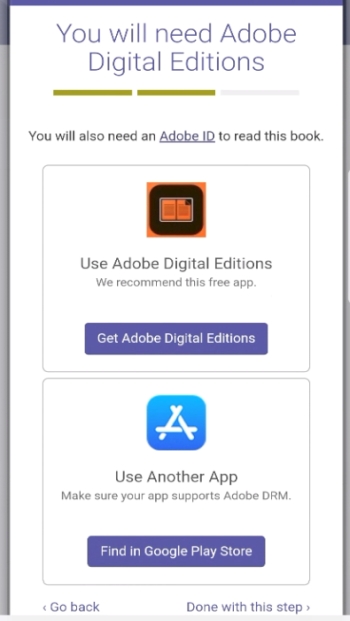
When prompted to install an e-book reader, press done with this step, as you should have already installed Adobe Digital Editions (see below right).
Choose loan duration and file format (if you have the option to do so) and click download your book.
Your browser should show your downloaded book. To read it, click open.
Stat/Ref TDS Health e-books
Stat/Ref TDS Health e-books should resize automatically on your mobile.
RCPharm databases
Likewise, our databases have device-detection software which adjusts the interface automatically according to the device being used.
The Royal College of Pharmacy library
The Royal College of Pharmacy library is open to visitors by appointment.
Visit the e-library
Available 24 hours a day, seven days a week, our e library is free for all members.