Library databases guide
Published: 24 November 2025
This was published when the organisation was the Royal Pharmaceutical Society.
If you’re having problems navigating the new user interface, this guide will help.
(All screenshots reproduced with the kind permission of EBSCO Information Services, https://www.ebsco.com/)
How to combine searches using search history
You can combine search terms using Boolean operators on the initial search screen, or you can add individual terms in the search box and combine later by clicking on the search history link.
Please note that you will need to click on this link, situated under the search boxes, after you have run your individual searches, as search history data does not now appear automatically:
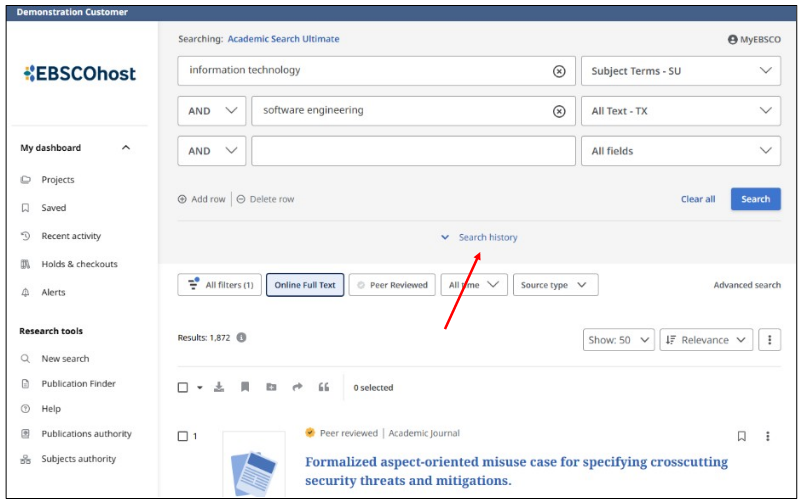
Once you have clicked on the link, you can then combine your searches with the Boolean operators ‘and’ and ‘or’:
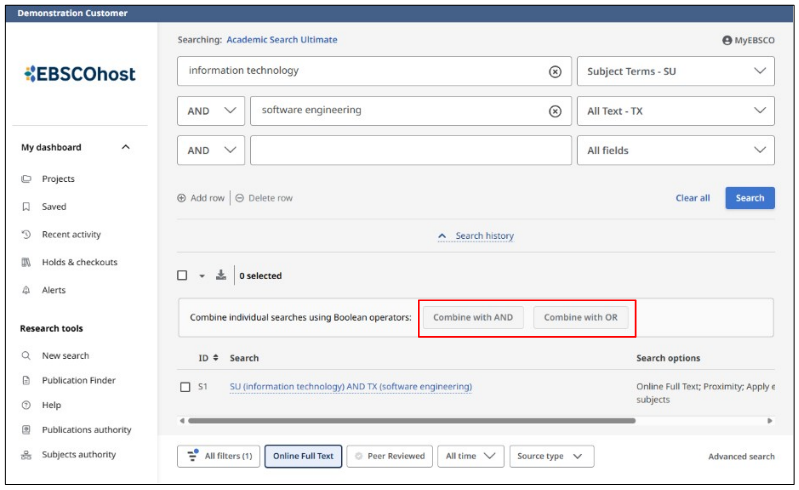
Your combined search is then added to the search box. Click on the magnifying glass to run your combined search.
How to refine your searches
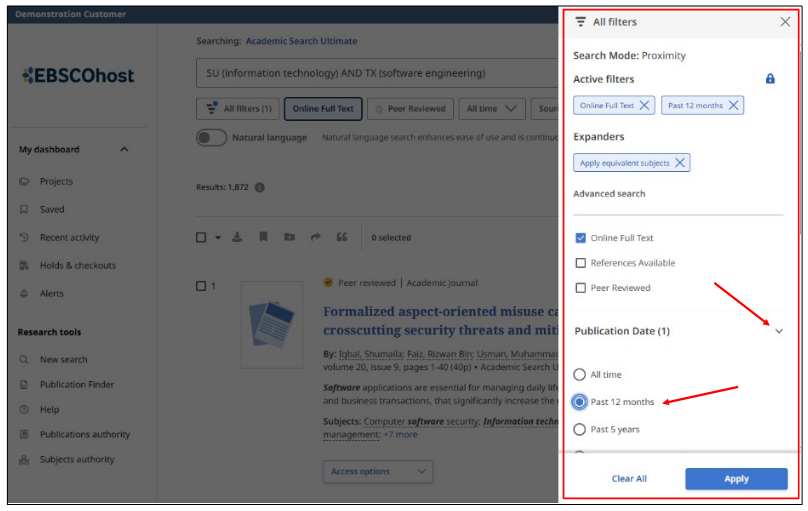
You can refine your search by applying filters, such as publication date; online full-text; peer-reviewed.
The filters button is now situated immediately below the search boxes. Click on it to display filters.
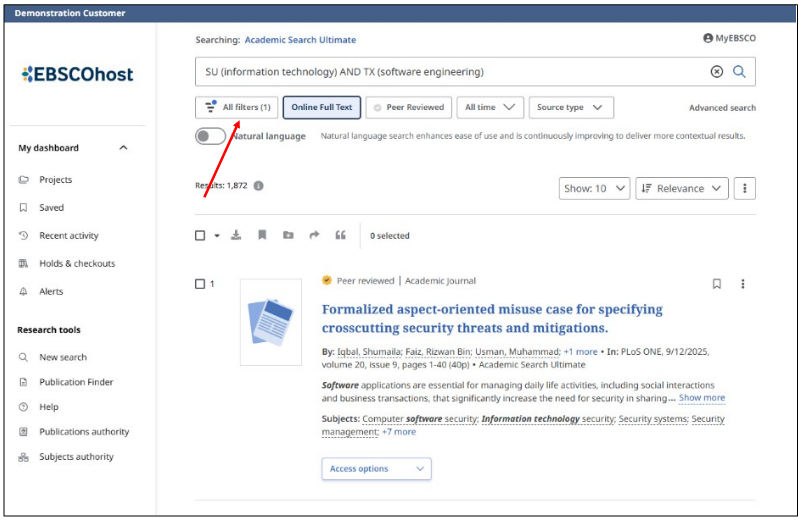
When you have selected your filters, click on the apply button to display results.
How to select articles for download
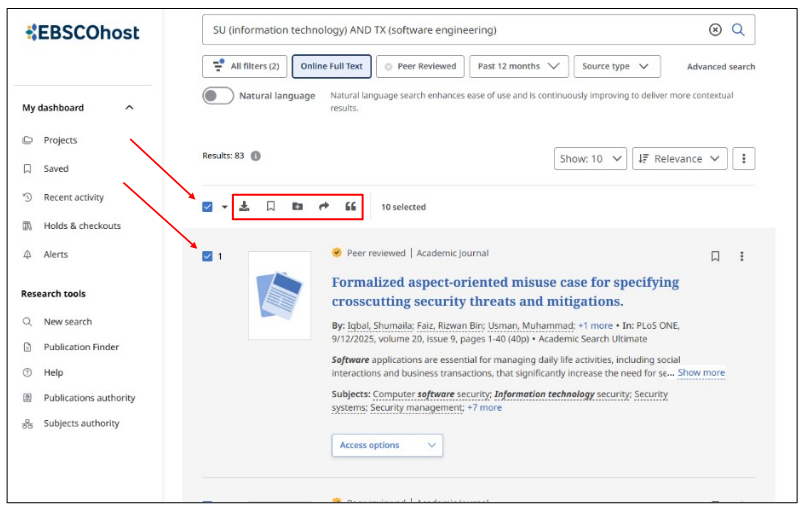
Use the checkboxes to select individual articles from the results list, or tick the checkbox at the top of the results list to select multiple records at once.
Use the tools above the results list to download citations.
This will enable you to:
- Save the articles to a dashboard.
- Add them to a project.
- Share them via email or Google.
- Copy or export article citations.
How to read articles
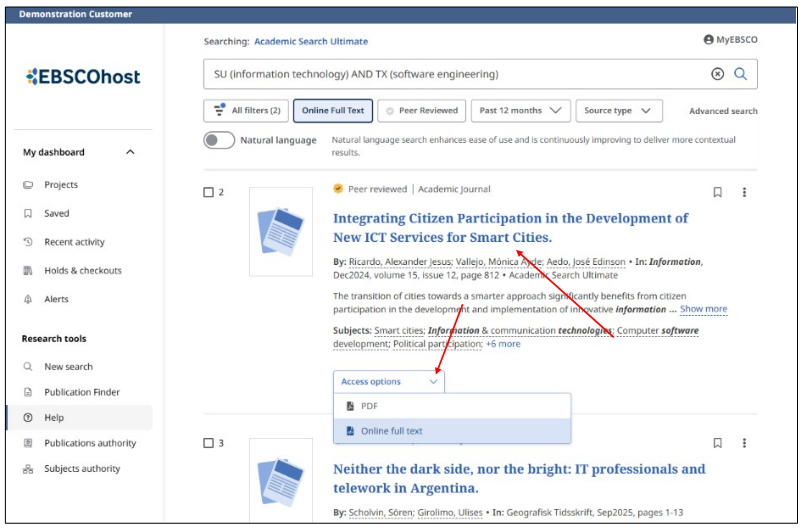
Choose an article to read from the results list by clicking on the access options button beneath the title and choosing your preferred full-text option from the menu.
If only one option is available, it will be displayed on the access now button.
For more information about the article, click on the title:
What does my dashboard do, and how do I use it?
The dashboard to the left of the screen is where you will find all information you have saved.
To save items, you need to set up your own personal EBSCO account. Items you have saved can be accessed once you have signed in.
You can create your account by clicking on MyEBSCO (top right-hand corner of screen), then clicking on create an account.
How to search for individual publications
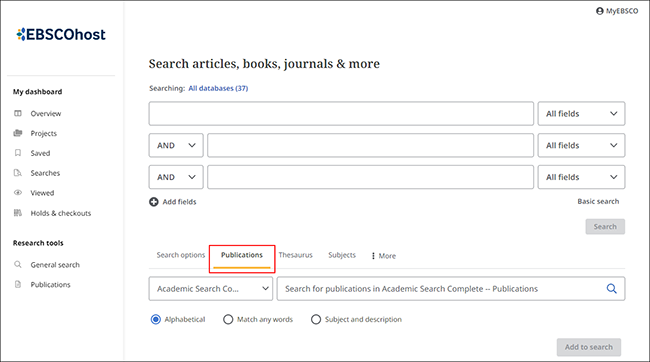
Click the publications tab beneath the search boxes. Type the publication you require into the search box and click on the magnifying glass to run the search.
Searching within a publication
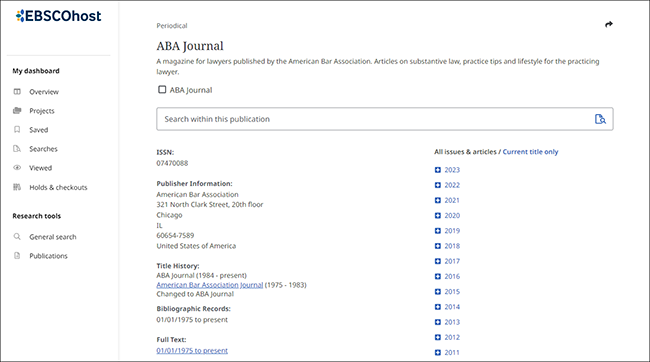
From the journal’s publication detail screen, enter keywords in the search within this publication box and click on the magnifying glass to run the search.
Further assistance
- Video tutorial: introduction to the new user interface.
- Database search tips
- Handling information from evidence searches to citation
- Evaluating online information
- Free information for pharmacists on the web
- For further assistance, please contact [email protected]
(All screenshots reproduced with the kind permission of EBSCO Information Services, https://www.ebsco.com/)
The Royal College of Pharmacy library
The Royal College of Pharmacy library is open to visitors by appointment.
Visit the e-library
Available 24 hours a day, seven days a week, our e library is free for all members.